Fady Samy

Fady Samy

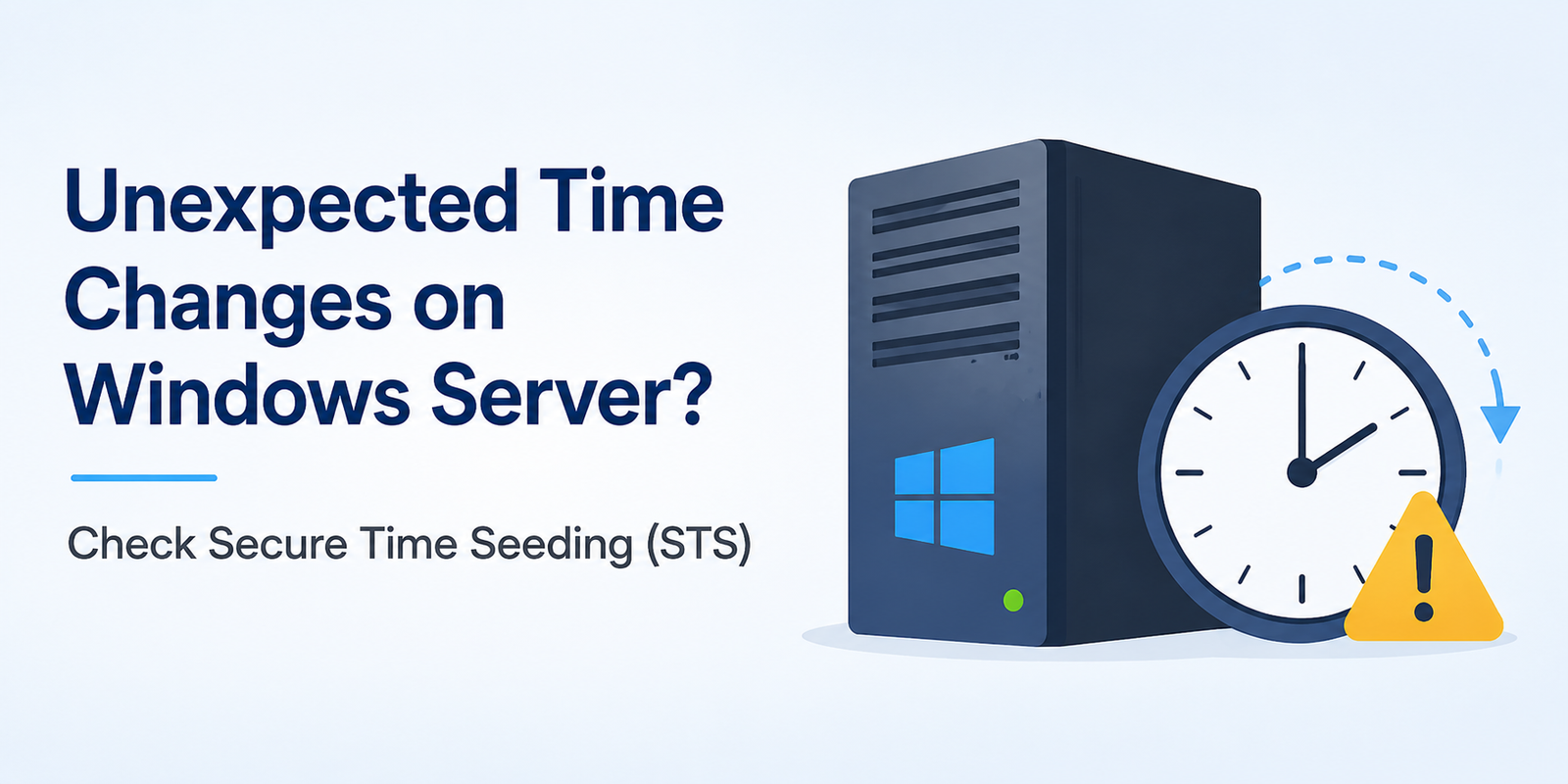
Unexpected Time Changes on Windows Server

Overview


Time synchronization issues in Windows environments can lead to authentication failures, application outages, Kerberos errors, replication issues, and service disruptions.

Recently, we investigated a case where a Windows Server experienced unexpected and repeated time changes. The investigation revealed that the changes were not caused by the configured NTP source, Domain Controllers. Instead, the culprit was an often-overlooked feature called Secure Time Seeding (STS).


Symptoms


The affected server was experiencing unexpected system time jumps.


Indicators


Event logs showed:

* Event ID 1 (Kernel-General) – System time changed

* Process: svchost.exe

* PID mapped to W32Time

* Related events: 34, 52, 4616


Root Cause


The issue was caused by Secure Time Seeding (STS), a feature introduced in Windows 10 (1511) and Windows Server 2016 as part of enhancements to the Windows Time Service.


STS uses information from outbound SSL/TLS connections to estimate and validate system time. In some environments, especially Hyper-V virtual machines, it can override traditional time sources such as:

* NTP servers

* Domain Controllers

* Hyper-V Time Synchronization

This may result in frequent clock jumps forward and backward, leading to authentication failures and service disruptions.


The feature was designed to help systems recover from significant clock drift; however, in some environments it has produced unexpected behavior.

Verification


Check the following registry key:

HKEY_LOCAL_MACHINE\SYSTEM\CurrentControlSet\Services\W32Time\Config

UtilizeSslTimeData

If the value is 1, Secure Time Seeding is enabled.

Resolution


Disable STS by changing:

UtilizeSslTimeData = 0

Then restart the server.

Deploying the Fix via Group Policy

If you need to disable STS across multiple servers or workstations:

1. Open Group Policy Management Console (GPMC).

2. Create a new GPO (for example: Disable STS) and link it to the required OU(s).

3. Edit the GPO and navigate to:

Computer Configuration

 └ Preferences

    └ Windows Settings

       └ Registry

4. Right-click Registry and select New → Registry Item.

5. Configure the following:

6. Click OK and close the Group Policy Editor.

7. Allow Group Policy to replicate or run gpupdate /force on target systems.

8. Restart the affected systems for the change to take effect.

Takeaway


If you encounter unexplained time changes and W32Time is responsible, don’t focus only on NTP or Domain Controllers. Verify whether Secure Time Seeding (STS) is enabled, as it can supersede other time sources and cause unexpected clock corrections.


Microsoft also recommends disabling STS on Windows Server workloads where accurate and stable time synchronization is critical.

Reference

Secure Time Seeding recommendations for Windows Server

Leave a reply

Your email address will not be published. Required fields are marked *